AI-generated illustration of phone preparation; this is not a Naver Map screenshot.
Quick answer
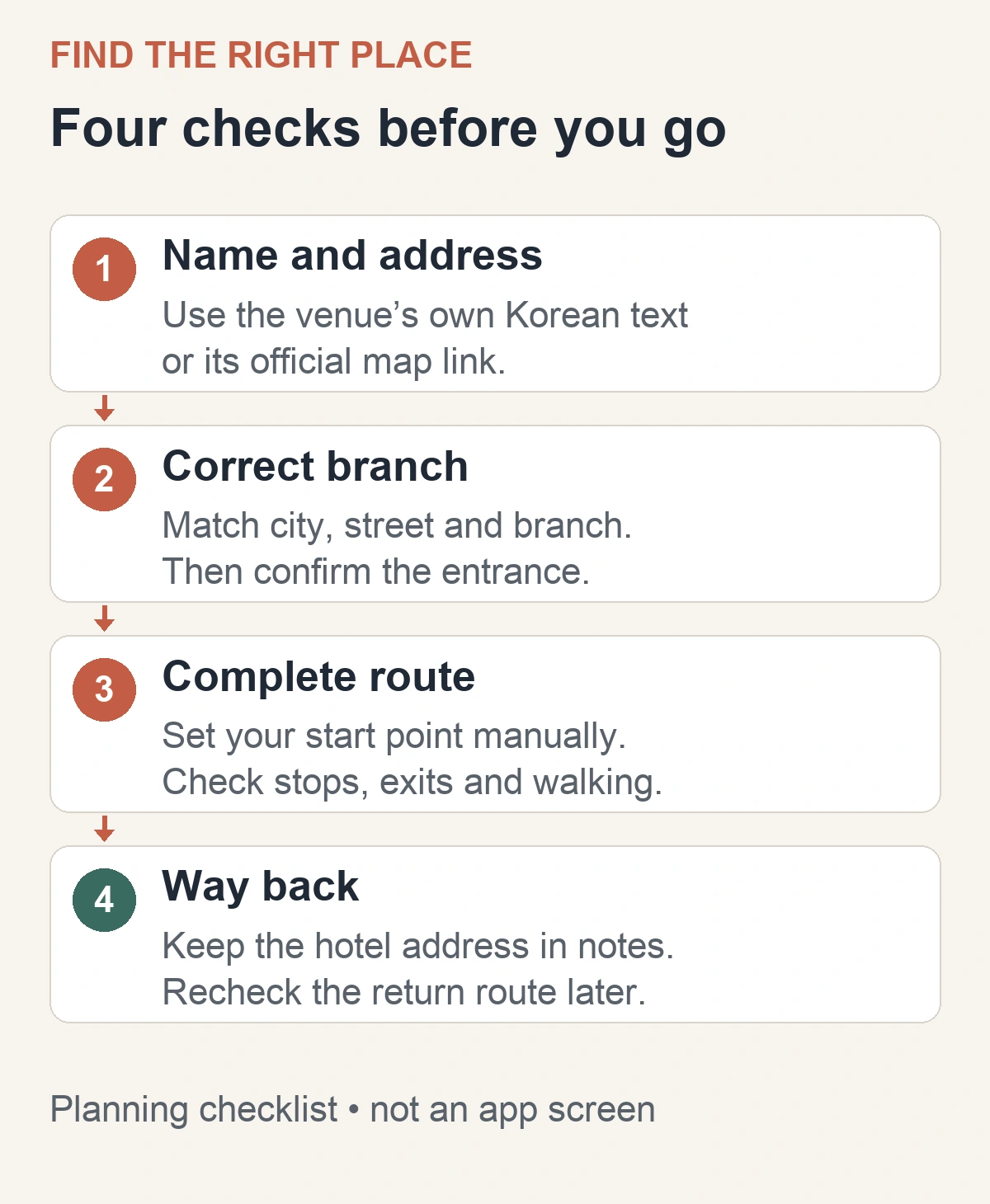
If Naver Map cannot find your hotel or café in English, start with the venue’s own map link or Korean name and address. Match the branch and entrance before requesting directions, and set your departure point manually when planning from outside Korea. English language settings help you read the app; they do not by themselves confirm that a search result is the place you intended.
If an English search cannot find your hotel or café
Start from the destination’s official website or booking confirmation. Copy its Korean name, road address and branch name into a note. If it supplies a Naver or Kakao map link, open that first. Avoid translating a brand name from scratch when the business already provides its own Korean spelling.
Then work through these checks:
- Search the exact venue name. If the English version fails, try the Korean name supplied by the venue, followed by the address as a separate search.
- Match the place, not just the name. Compare the city, district and street address. A familiar shop name may refer to another branch. Check any floor or building information against the venue’s instructions.
- Check the entrance. Look at the venue’s arrival instructions and available map or street-view imagery. An address identifies a building; it does not necessarily tell you which door the hotel, restaurant or ticket office uses.
- If it still does not match, ask for a map link. Send the accommodation or venue a simple request for its Korean address and entrance directions. Do this before a time-sensitive arrival. You can write: “Please send your Korean address, Naver or Kakao map link, and entrance directions.”
This is a practical troubleshooting sequence, not a guarantee that Korean text fixes every result. You can also compare the place in another app. Kakao’s official service page lists public-transport, walking, cycling and driving route searches. Check that both apps point to the same address before comparing their travel times.
If you already use Google Maps to collect ideas, keep it as a second reference for identifying the destination. Before relying on it for travel, test the exact journey and travel mode you need. Do not infer usable turn-by-turn guidance merely from seeing the place on a map.

Set the language before planning a route
Naver’s official app listing describes English maps and navigation, transit directions, live departure and arrival information, and street view. English support does not mean every linked page or feature is translated: Naver’s help page specifically says its Place Agent answers are in Korean.
The current official language instructions use the MY/profile icon at the top right, then the settings gear and Language. On iPhone, you can also open the device’s Naver Map settings and choose Preferred Language. If that option is missing, Naver directs you to add a supported language in the phone’s Language & Region settings. Choose English, then return to the map.
Install the actual Naver Map app, not just the general Naver search app. Before travel day, make sure you can find your accommodation and read a route to a nearby station. A short practice journey exposes a search problem while you still have time to ask the accommodation for a better link.
Set both ends when you are still outside Korea
A useful pre-trip test is your hotel to your first planned stop, not your current location at home to Seoul. Naver’s route-setting help says the app uses your current location when no departure point has been specified. Enter the accommodation as the start and the confirmed venue as the destination yourself.
The same help page explains that you can choose a location on the map. Use that option only after identifying the correct building or entrance; an approximate pin can produce an apparently convincing route to the wrong place. For a day with several stops, check each public-transport leg separately: Naver does not offer intermediate stops in public-transport route searches.
Read the walk at each end, not only the total time
Compare the complete journey: the walk to the station or bus stop, the vehicle direction, transfers, and the walk from the final stop to the entrance. When an exit number or stop identifier is shown, keep it with the route. Recheck station signs on arrival, especially if a closed entrance or construction changes the path.
For example, if two routes have similar arrival times, our preference for a visitor carrying luggage is to compare walking distance and transfers before choosing the nominally faster result. This is a planning judgment, not a promise that one app’s route is easier or step-free. If stairs or accessibility affect your trip, confirm the specific station facilities and venue entrance separately.
Check the return journey too. Re-run directions when you are ready to leave rather than treating a morning screenshot as an evening timetable. A useful saved note contains the destination’s Korean name and address, the final stop or station, the entrance instructions and the return destination. A screenshot is a reference, not live transport information.
Save a fallback before you need it
Naver’s bookmark instructions say you must be signed in to save and use saved information. If account setup gets in the way, keep the addresses and links in your phone’s notes while you resolve it. Do not leave your only copy of an essential hotel address inside an account you cannot reopen.
Arrange internet access for fresh route searches and keep your phone charged. Our Korea eSIM guide explains the difference between data access and having calls or SMS. Once your route works, use the Tmoney and Climate Card comparison to check payment and pass coverage separately. A route appearing in a map does not establish that your pass covers it.
Official app and help information checked on October 27, 2026. This is a sourced planning guide, not a report of an on-device navigation test. App screens and route results can change.